Tabs
Invoice Header
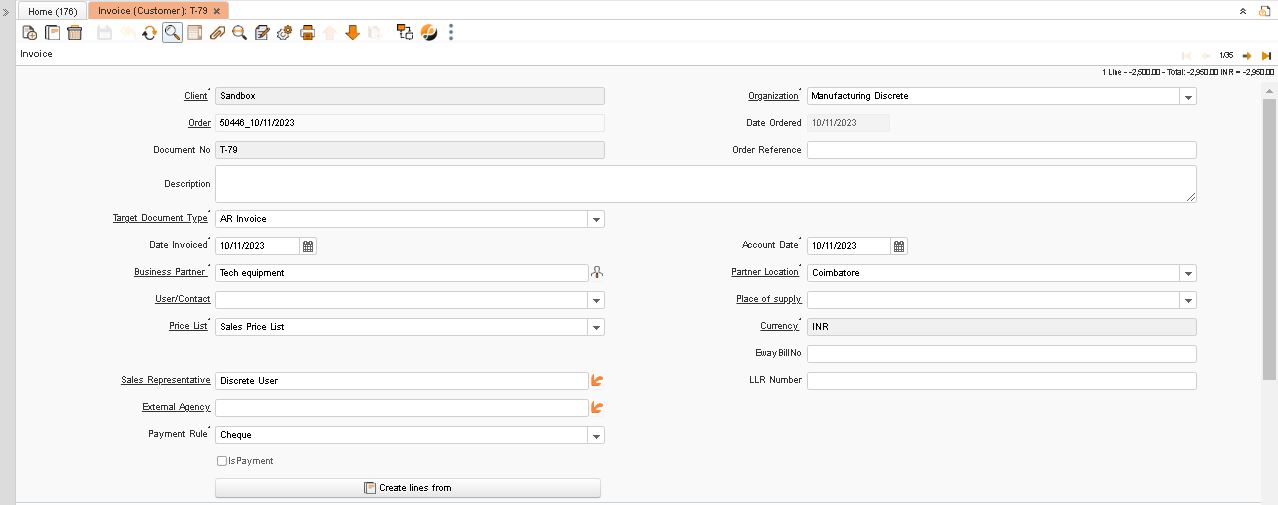
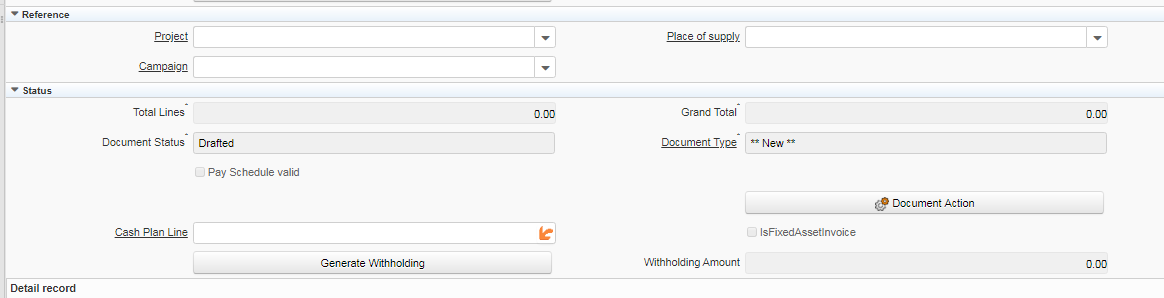
Critical Fields:
1. Business Partner: We can select existing/new customers here and this field used to maintain the customer
2. Partner location: This field is updated automatically, based on business partner selection, and also updates the site manually
3. Price list: The price list will be selected in the product master once we choose the product price list will display automatically and the user also select manually
4. Payment Rule: This field used to select the payment type
4.1 Cash: After receiving the invoice, the customer pays the invoice amount through cash only
4.2 Check: After receiving the invoice, the customer pays the invoice amount through a check
4.3 Credit Card: Payment amount paid to vendor to use Credit Card
4.4 Direct Debit: Payment amount paid to direct vendor account number
4.5 Mixed POS Payment
4.6 NEFT
4.7 On Credit
4.8 RTGS: Payment amount paid to RTGS
5.Payment term:The terms of payment(Immediate ,30 days,etc)
6. Sales representative: This field updates automatically based on system login through the user name
7. Order: Once the sales or shipment document number select and saved the document this field is updated automatically
Critical & one-time setup fields:
1. Organization: This field is used to select the organization
2. Target Document Type- This Field is used to select the type of document that you are going to process
Non-Critical Field:
1. Order: This field is used to complete an invoice transaction using a Sales order reference. We can simply paste the sales order document number or choose the sales orders that need to be invoiced.
2. Order Reference: Notes, Document, and Important Information for this Order.
3. Description: Used to describe specifics about an Invoice document or any other note, information, or data, for example.
4. User contact: He is the contact person on that particular vendor side.
5. Place of supply: Where should the despatch material/item/products be delivered(As stated by the states)
6. Project: If this order is processed against a project user can tag the project for tracking.
7. Campaign: Campaign Details of the project are processed against the order
8. Cash plan line: It is a master that is used to maintain a particular cash plan for this particular order.
9. Discount Printed Checkbox (Invoicing): To print Discount Details on Report
10. Ispayment: select this checkbox to generate the payment from the invoice expense window.
11. Bank Account: select the bank account number to do the payment
12.External Agency : It is used to select the existing business partner name.
Serial number/Lot number (ASI):
Zoom condition:
1. Shipment customer
2. Sales order
3. Receipt
4. Service Request
5. View TDS
Customization:
1.Ctreate lines From Customer DC :
1. The Create lines From Customer Dc Button is used to select the Data from the Customer Material DC Outgoing Transactions.
2. In this form we have 2 filter options like Date and the Outgoing Dc Product.
3. Service Product For Outgoing Product Should be maintained in the Product Master Related Product Tab.
4. By Using this Option We can Directly Create Invoices For the Customer Material DC Services Charges without the Sales Order References.
Invoice line
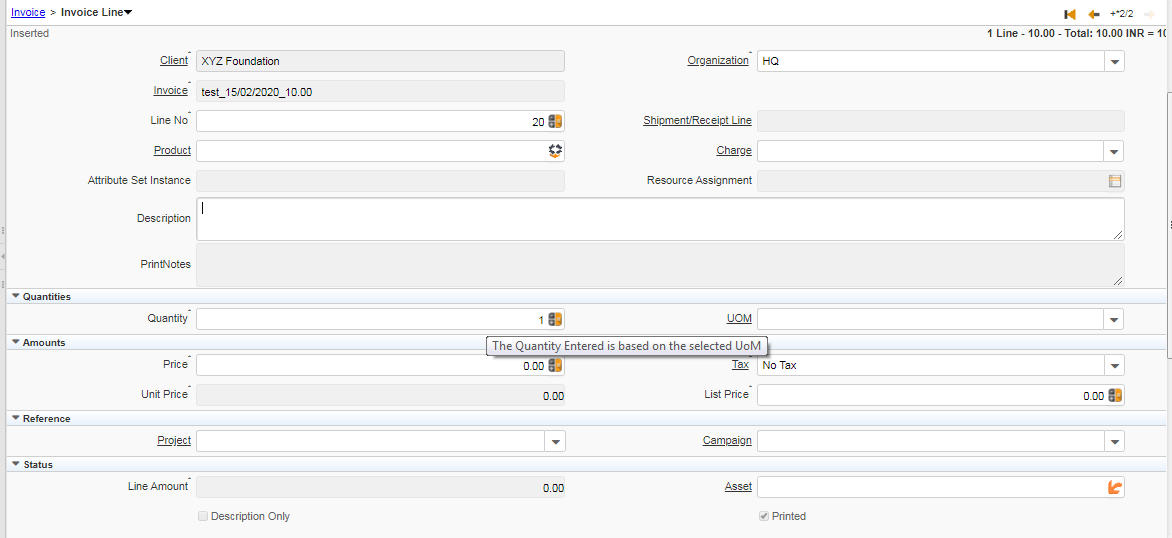
2. Quantity: Quantity that needs to be invoiced
3. Charge: additional document charge to add this field
4. UOM: The record will populate from the product and we can change the UOM manually if UOM conversion for the product.
5. Tax: This field is used to select interstate or intrastate tax, and we can also change the tax.
6. Price: This field is updated automatically when the product selection or updated manually
Critical & one-time setup fields:
Non-Critical Fields:
1. Shipment/Receipt Line: This field displays information from a Shipment line.
2. Description: Used to describe specifics about an Invoice document or any other note, information, or data, for example.
3. Project- If this order is processed against a project user can tag the project for tracking.
2. Campaign: If this order comes with the mobile marketing campaign.
3. Unit price: The price entered is converted to the actual price based on the UOM conversion
4. List price: The List Price is the official List Price in the document.
5. Tax amount: This is the tax amount, which was computed automatically based on the tax rate.
Serial number/Lot number (ASI):
If the product against attribute is updated, the system will be displayed
Zoom conditions:
Validation:
Invoice tax
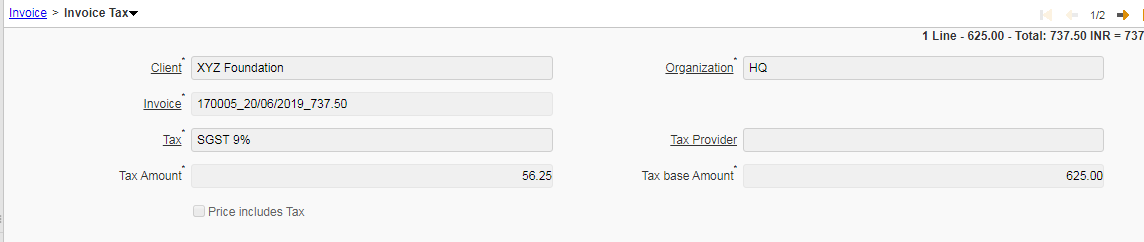
Note: Once the invoice is complete invoice tax tab is updated automatically.
Payment schedule
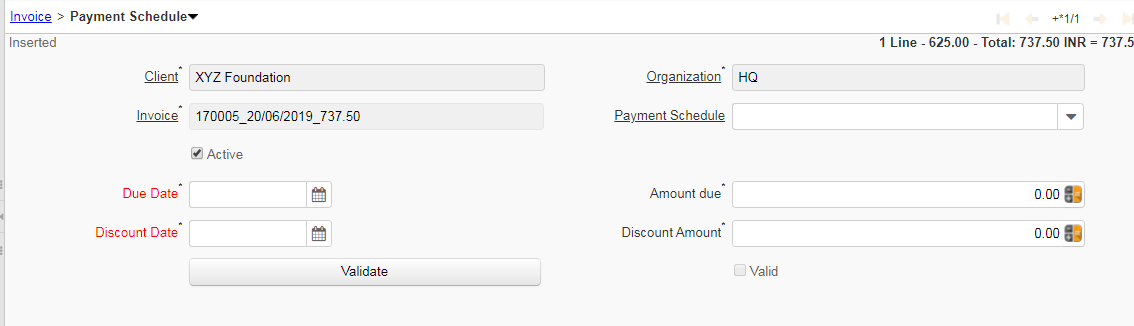
Critical Fields:
1. Payment Schedule: To update the schedule details
2. Due Date: The date when the payment is due
3. Discount Date: Once the discount date is exceeded system does not consider the discount amount
4. Amount Due: Amount of the payment due
5. Discount Amount: To update the discount amount details
Critical & one-time setup fields:
There is no such field.
Non-Critical Fields:
There is no such field.
Zoom conditions:
Customization:
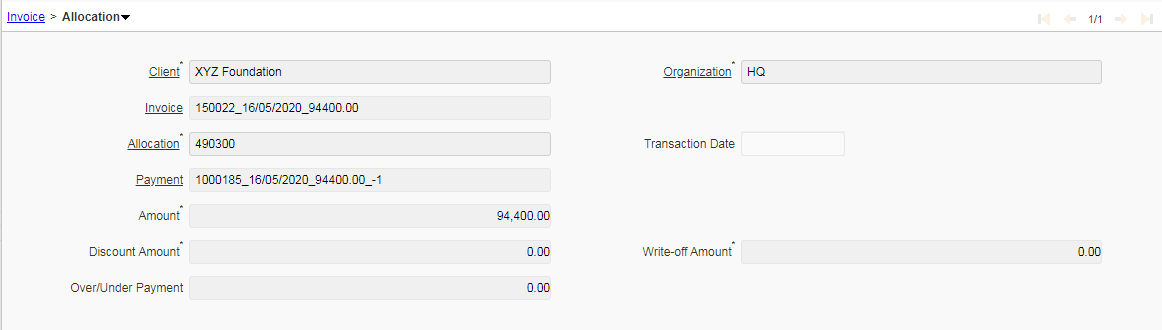
Allocation
With holding
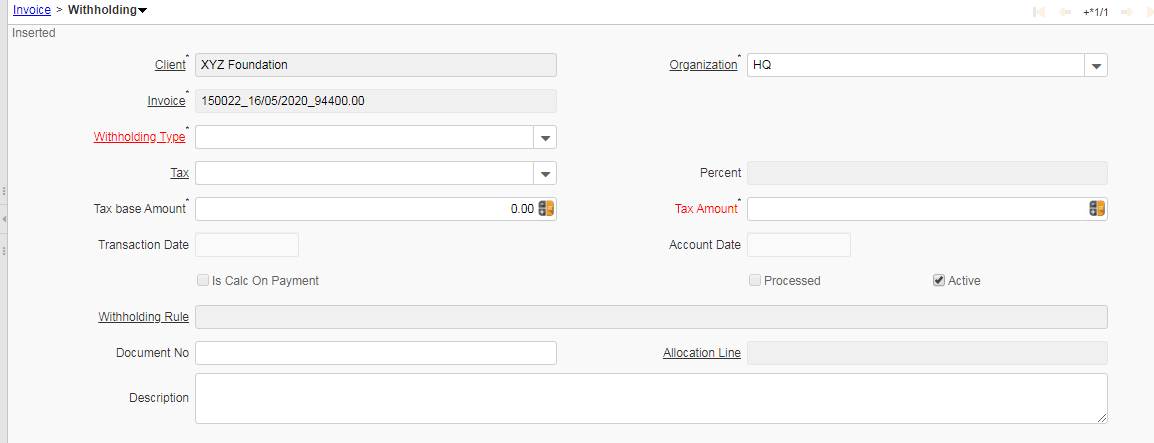
Critical Fields:
1. This field is used to select the different types of Withholding type
2. Tax is help us to select the Tax rates.
3. Provide Tax base amount to calculate the Tax.
4. Tax amount will show the calculated tax as per the tax rates.
5. Transaction Date as selected in the Header.
6. Account Date as selected in the Header.
7. Withholding rule shows the configured data to calculate the tax amount.
8. Document no autogenerate when the record is saved.
Critical & one-time setup fields:
Non-Critical Fields:
1. Allocation line record will show after the invoice document is completed.
2. Description used to maintain the comments for the record.
Zoom conditions:
Customization:
Invoice Allocation
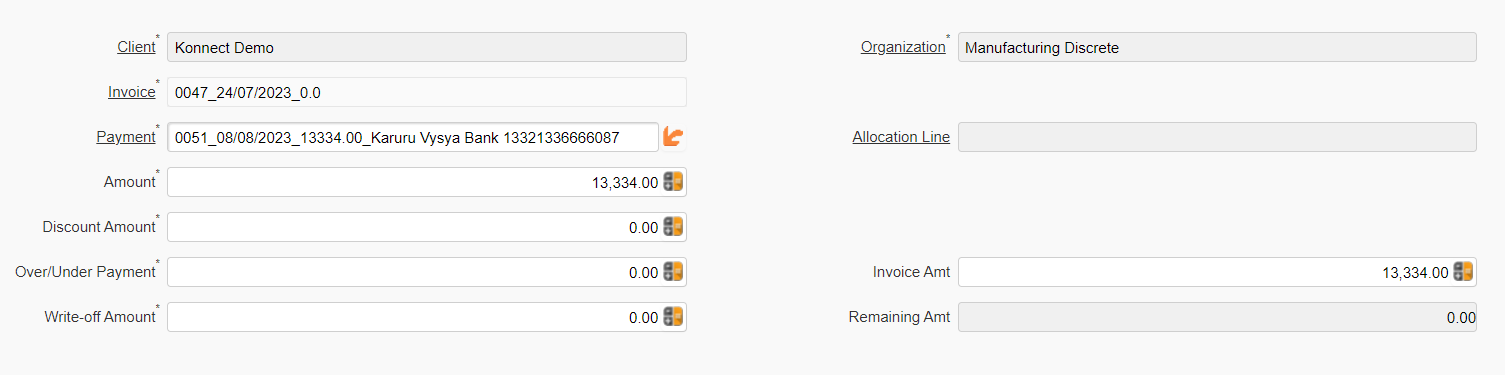
Critical Fields:
1. Payment: This field help us to map the receipt document to the invoice.
2. Invoice Amt: Invoice grand total amount populate in this field.
3. Amount: Shows the received amount from the selected receipt record.
Critical & one-time setup fields:
Non-Critical Fields:
1. Allocation line: This field will show the allocated line after completing the invoice document.
2. Discount Amount: This field help us to maintain the discount amount received from invoice amt.
3. Write-off Amount: If the invoice amount is not received use this field to write off the amount as uncollectible.
4. Over/Under Payment: To maintain the unallocated or partial amount
5. Remaining Amt: This field shows the balance amount to be paid.