Manufacturing Workflow(Routing)
Introduction
Introduction
Introduction
Overview
- Manufacturing Workflows (Routing) is a set of information detailing the method of manufacture of a particular item .It includes the operations to be performed their sequence the various work centers to be involved and the standards for setup and run.
Business Case
- In some companies routing also includes information on tooling operator skill levels inspection operations testing requirements etc.
- In this work flow we can mention the work flow type and the resources also.
Tab
Tab
Manufacturing Routing
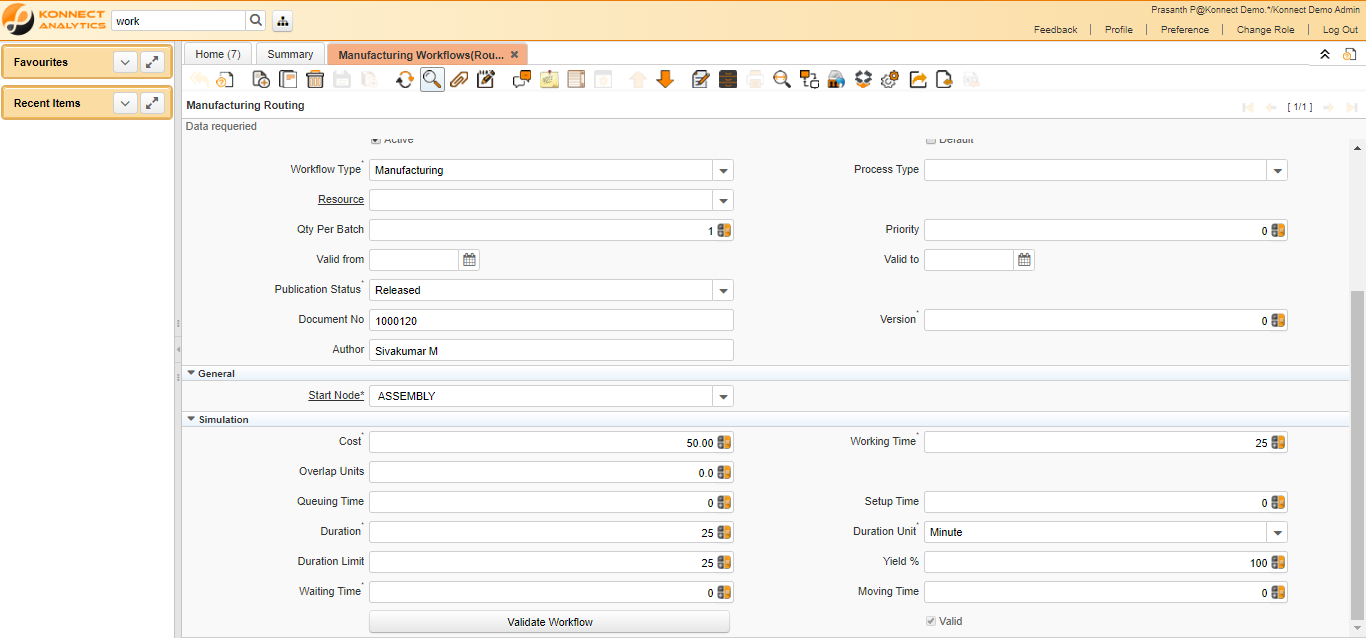
Critical Fields
- Name : Used to create the workflow name.
- Workflow Type : Used to select the flow type.(Ex : Document Process,Document Value,General,Manufacturing,Quality,Wizard).
- Duration Unit : Used to select the Unit to define the length of time for the execution. (Ex : Day,Hour,Minute,Month,Second,Year)
- Start Node : The Workflow Node indicates a unique step or process in a Workflow.(It is visible only when we create the operations)
Critical & onetime setup fields
- Organization Field- This Field is used to select the organization which you are going to process the document.
Non-Critical Fields
- Resource : Here It is used to mention the Plant.(Ex : Assembly ,Refer Resource Master)
- Qty Per Patch : It is used to mention the No of Qty processed in one Batch
- Valid From : The Valid From date indicates the first day of a date range
- Publication Status : Used for internal documentation
- Document No : The document number is usually automatically generated by the system and determined by the document type of the document. If the document is not saved, the preliminary number is displayed in "<>".
- Author : It shows the workflow creator name.
- Cost : It is used to give cost information's
- Overlap Units : Overlap Units are number of units that must be completed before they are moved the next activity
- Queuing Time : Queue time is the time a job waits at a work center before begin handled.
- Duration : Used to give Expected (normal) Length of time for the execution
- Duration Limit : Maximum (critical) Duration for time management purposes (e.g. starting an escalation procedure, etc.) in Duration Units.
- Waiting Time : It is used to give Amount of time needed to prepare the performance of the task on Duration Units
- Moving Time : It is used to give amount of of time needed to move from one operation to another operation.
- Yield % : The Yield is the percentage of a lot that is expected to be of acceptable quality may fall below 100 percent
- Setup Time : Used to give Setup time before starting Production
- Working Time : Used to give Amount of time the performer of the activity needs to perform the task in Duration Unit
- Version : The Version indicates the version of this table definition.
- Valid To : The Valid To date indicates the last day of a date range
- Priority : The Priority indicates the importance of this request.
- Default : The Default Checkbox indicates if this record will be used as a default value.
- Process Type : Used to select the process type from the list.(Ex : Batch Flow,Continuous Flow,Dedicate repetitive Flow,Job Shop,Mixed Repetitive Flow,Plant. )
Zoom condition’s
- We can zoom and find the Manufacturing orders creation by using this workflow.
Customization
Tab
Operations
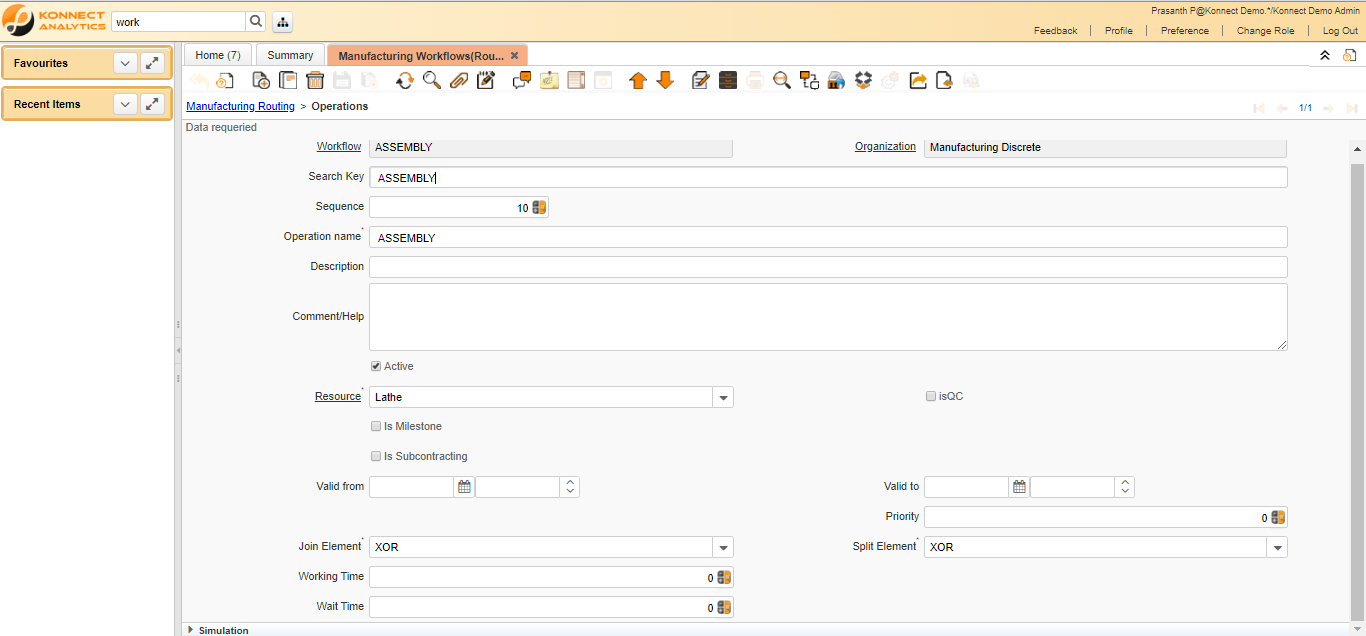
Critical Fields
- Operation Name : It is used to mention the name of the operation.
- Resource : It is used to Select the manufacturing work center (previously defined) where you want to execute the operation. For the product costing, the Resource rate is taken from the cost element introduced in the window Product Costing (Refer resource master).
Critical & onetime setup fields
Non-Critical Fields
- IsQc : This operation is under quality check when we select this check box.
- Quality Plan : We should give the quality plan when we select the IsQc check box.(Refer Quality plan master)
- IsSubcontracting : When we select this check box this operation is used for the subcontracting process.
- Business Partner : We should mention the Business partner name when we select the IsSubcontracting check box.(Refer Business Partner Master)
- IsMilestone :
- Valid From : The Valid From date indicates the first day of a date range.
- Join Element : It used to mention the Semantics for multiple incoming Transitions for a Node/Activity. AND joins all concurrent threads - XOR requires one thread (no synchronization).
- Working Time : Used to give Amount of time the performer of the activity needs to perform the task in Duration Unit
- Wait Time : It is used to mention Time in minutes to be suspended (sleep)
- Cost : It is used to give cost information's
- Overlap Units : Overlap Units are number of units that must be completed before they are moved the next activity
- Queuing Time : Queue time is the time a job waits at a work center before begin handled.
- Duration : Used to give Expected (normal) Length of time for the execution
- Duration Limit : Maximum (critical) Duration for time management purposes (e.g. starting an escalation procedure, etc.) in Duration Units.
- Waiting Time : It is used to give Amount of time needed to prepare the performance of the task on Duration Units
- Moving Time : It is used to give amount of of time needed to move from one operation to another operation.
- Yield % : The Yield is the percentage of a lot that is expected to be of acceptable quality may fall below 100 percent
- Setup Time : Used to give Setup time before starting Production
- Split Element : It is used to mention the Semantics for multiple outgoing Transitions for a Node/Activity. AND represents multiple concurrent threads - XOR represents the first transition with a true Transition condition.
- Valid To : The Valid To date indicates the last day of a date range
- Priority : The Priority indicates the importance of this request.
Zoom condition’s
Validation
Tab
Product
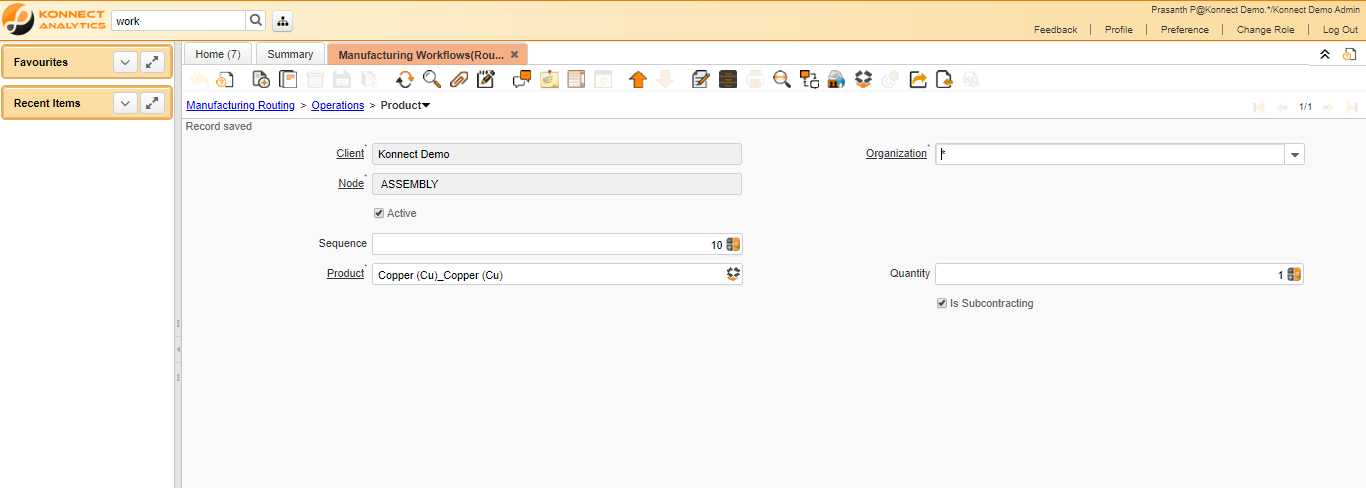
We should fill this tab only when we select the operation is subcontract.
Critical Fields
- Product : We should select the subcontracting product from the product master.
- Quantity : The Quantity indicates the number of a specific product or item for this document.
Critical & onetime setup fields
Non-Critical Fields
- Sequence : The Sequence indicates the order of records
Zoom condition’s
Validation
Tab
Tools
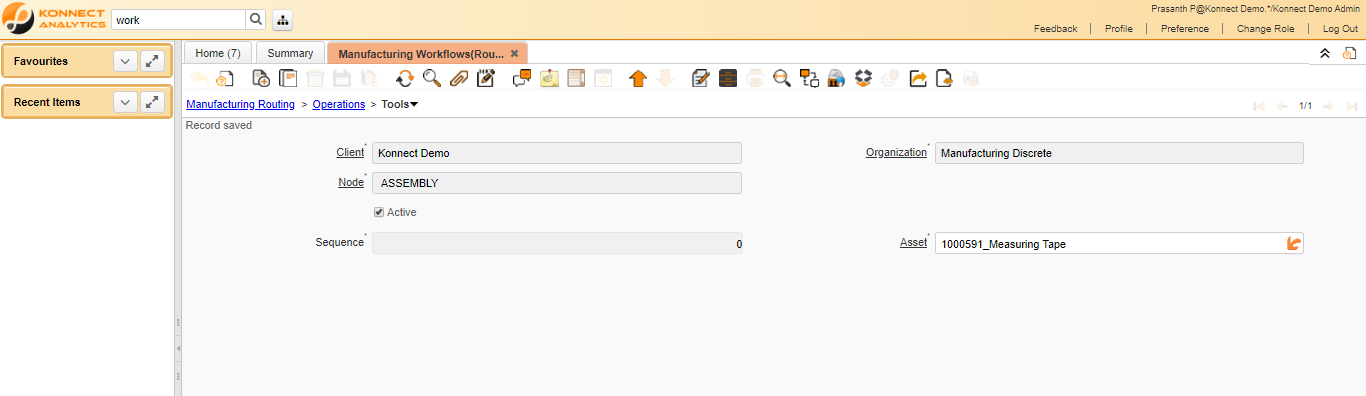
Critical Fields
- Asset : We should select the asset which is used for this operation.(Refer Asset Master),
An asset is either created by purchasing or by delivering a product. An asset can be used internally or be a customer asset.
Critical & onetime setup fields
Non-Critical Fields
- Sequence : The Sequence indicates the order of records
Zoom condition’s
Validation
Tab
Next Operation
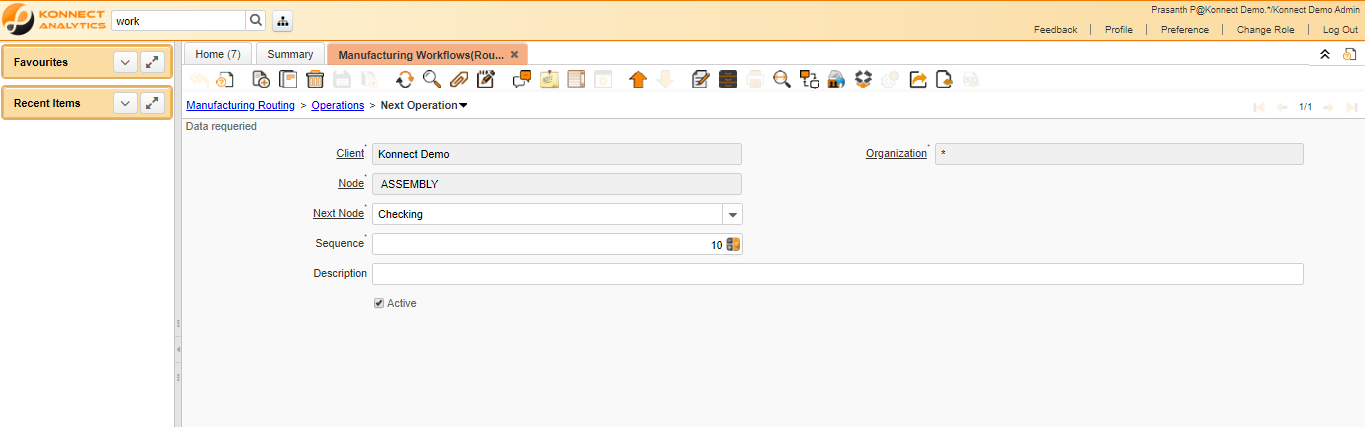
Critical Fields
- Next Node : Here we can select the next node of the operation from the operation sub tab,
The Next Node indicates the next step or task in this Workflow.
Critical & onetime setup fields
Non-Critical Fields
- Sequence : The Sequence indicates the order of records
Zoom condition’s
Validation
Validations
Validations
Validations
Save
- It is used to save the records after the mandatory fields are filled.
Delete
- It is used to delete the records.(Cannot delete the records after the transactions are done)
Process
Process
Order Process
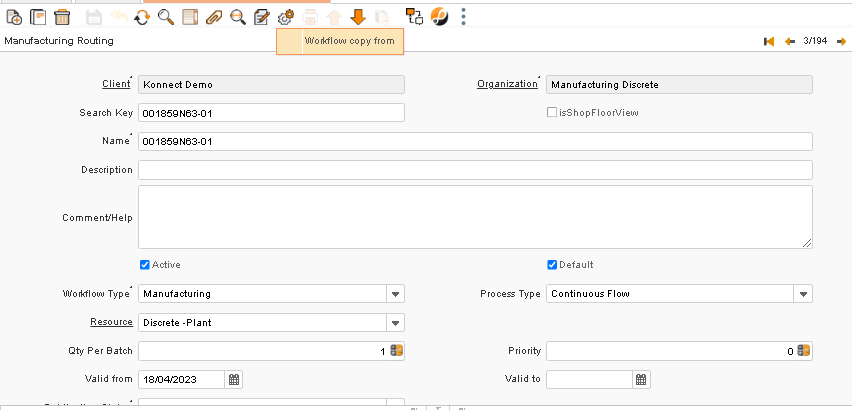
1.Workflow Copy from: This process will help you to copy the Workflow from the workflow routing master
Process
Operation process
Not applicable
Video
Video