Return To Vendor
- Introduction
- Tabs
- Return To Vendor Header
- Return to Vendor Line
- Return to Vendor Line>Confirmations
- Return to Vendor Line>Attributes
- Document Actions
- Process
- Video
- Reports
- Preceding and Succeeding Window
Introduction
Introduction
Introduction
Return to Vendor refers to the process of return of goods that takes place between a user or retailer and a vendor. It may consist of return between user and retailer that sends it back to vendor. In some cases, user may directly send the goods to the vendors. involving activities such as Return of goods, Repair, Resend replacement, Otherwise refund for the good.
Business Example
After submitting a vendor return request, the customer uses the Return to Vendor document to conduct returns of items in accordance with the Terms & Conditions.
Tabs
Return To Vendor Header
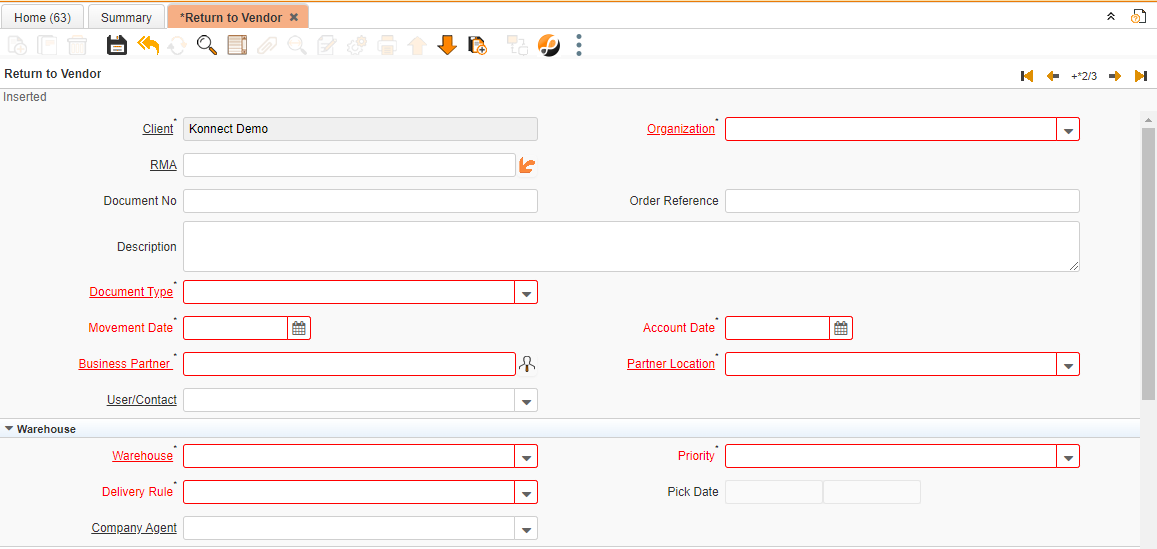
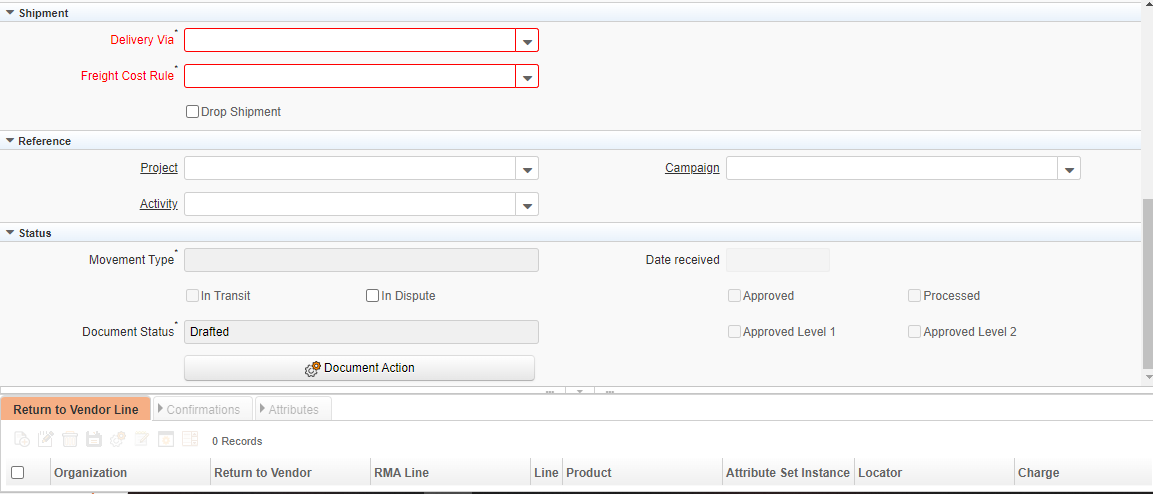
Critical Fields
1. RMA: To choose which RMA (Vendor Return Request) the user wants to move onto processing a return for.
2. Movement Date: Date of Movement of goods.
3. Account Date: Date of accounting.
4. Business Partner: We can select existing/new customers here and this field is used to maintain the Vendor
5. Partner Location: This field is updated automatically, based on business partner selection, and also updates location manually
6. Warehouse: Product storage purpose, Select a warehouse where the final product is stored.
7. Priority: According to importance we can set priority for that Purchase order (High, Low, Medium, Minor, Urgent).
8. Delivery Rule: This field helps to select the timing of the delivery
8.1.After Receipt: It defines the order to be paid after receipt
8.2.Availability: This will ship goods as they come into stock, regardless of whether there will be outstanding quantities for the order or not.
8.3.Complete Line: This will generate shipments whenever stock to fulfil any individual order line is available.
8.4.Complete Order: This will create a shipment when the stock to fulfil the entire order is available.
8.5.Force: This will cause a shipment to be generated for the full quantities specified in the order, regardless of whether they are in stock or not.
8.6.Manual: This will prevent shipments from being automatically generated
9. Delivery Via: indicates how the products should be delivered
9.1.Pickup: After the Product is ready to ship, customers will take the product in their own vehicle.
9.2.Delivery: Delivery is done by the vendor itself to the customer.
9.3.Shipper: The Shipper indicates the method of delivering products via ship, aeroplane..etc.
10. Freight Cost Rule: Method for charging flight
10.1.Calculated: We can calculate the freight cost
10.2.Fix price: Fixed the freight cost
10.3.Included in Price: Already included in the product price list
Critical & one-time setup fields
1. Organization: This field is used to choose the organization where this document will be presented to.
2. Document Type: This Field is used to select the type of document that you are going to process
Non-Critical Fields
1. Order Reference: To refer order with this document.
2. Description: To note Specifics required with documents and to describe other important information.
3. User/Contact: To update a User or Contact in accordance with a Business Partner, utilize this field.
4. Company Agent: When the company agent field is checked, this field displays data obtained from the employee master for updating reasons.
5. Drop Shipment: To proceed for Vendor return with drop shipment
6. Project- If this order is processed against a project user can tag the project for tracking.
7. Campaign: This field is used to select the campaign type
8. Activity: Activities performed in relation to a project
Return to Vendor Line
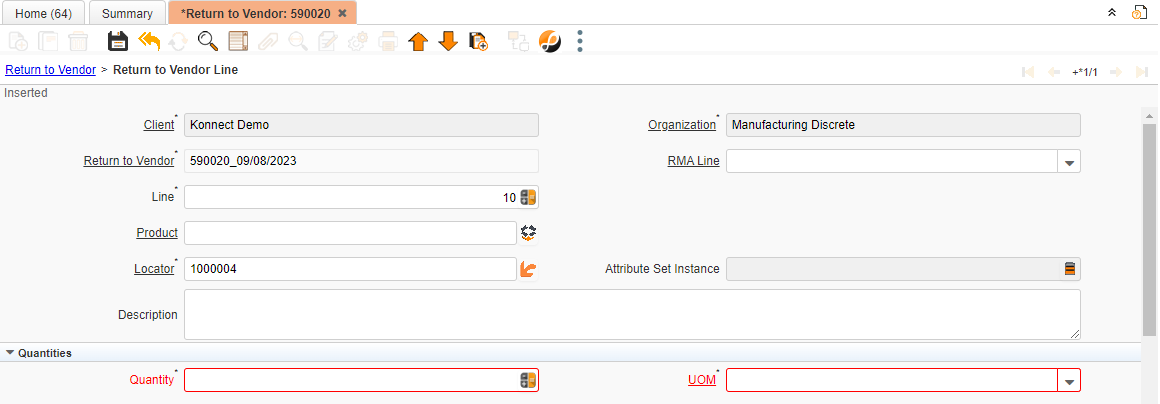
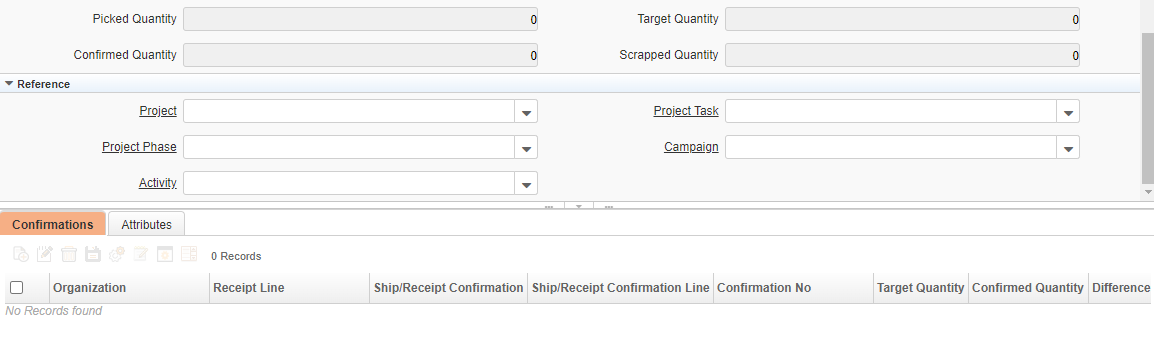
Critical Fields
1. RMA Line: To choose RMA Line which is to be processed for return
2. Locator: This field is for Locator details which is under Warehouse
3. Attribute Set Instance: To select Attributes of product for example Brand, Colour, Specifications, Etc.
4. Quantity: Once the RMA line is chosen, the quantity will be fetched automatically, though the user may alternatively enter it manually.
5. UOM: Unit of measurement of product
Non-Critical Fields
1. Description: To note Specifics required with documents and to describe other important information.
2. Project: If this Document is processed against a project user can tag the project for tracking.
3. Project Task: This field is to select project task under project, it is a master data according to project.
4. Project Phase: This field is to select project phase under project it is a master data.
5. Campaign: This field is used to select the campaign type
6. Activity: Activities performed in relation to a project
Return to Vendor Line>Confirmations
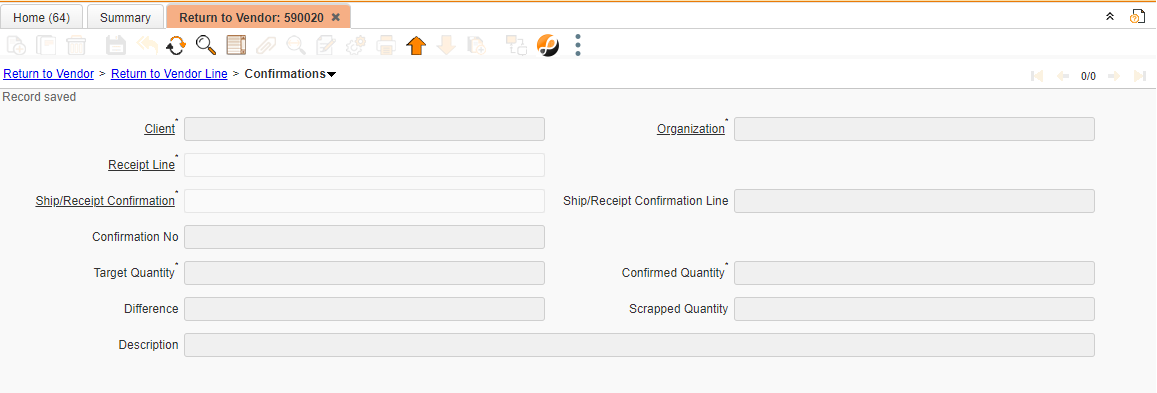
Details Will be Automatically fetched through the parent Tab once completed.
Return to Vendor Line>Attributes
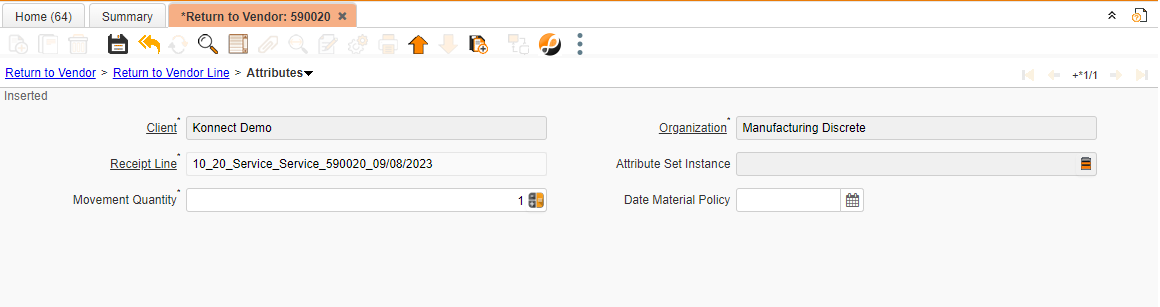
Critical Fields
1. Movement Quantity: Movement Quantity details.
2. Date Material policy: Date of material policy
Document Actions
Validation
Save
1. System will check all mandatory fields.
Delete
Actions
Document action complete
1. System will complete the document and keep ready for processing.
2. Once document action is complete, all fields are updated in read-only.
Document action void/reverse correct actual
Process
Process
Generate invoice from receipt
Create and process Invoice from this receipt. The receipt should be correct and completed.
Generate Invoice from Receipt will create an invoice based on the selected receipt and match the invoice to that receipt. You can set the document number only if the invoice document type allows to set the document number manually.
Create Confirmations for the Document
The confirmations generated need to be processed (confirmed) before you can process this document.
ImportSerialNo
To Import serial number
Video
Video
Reports
Reports
Report is well Complied set of data according Scenario
| Sr.no | Report Name | Report Purpose |
| 1 | Order to Vendor Return | To view Return To Vendor details using parameters Business partner, product, order references, movement date. |
Preceding and Succeeding Window
Return To Vendor Connected Window
Preceding Window
Vendor Return request :- Vendor Return Request
Succeeding Window